> ## Documentation Index
> Fetch the complete documentation index at: https://docs.supadata.ai/llms.txt
> Use this file to discover all available pages before exploring further.
# Supadata MCP Server — YouTube Transcripts & Web Scraping for AI Agents
> Connect Claude, Cursor, and ChatGPT to YouTube transcripts and web scraping via the Supadata MCP server. Get video transcripts, scrape websites, and crawl pages directly in your AI assistant.
## Overview
The Supadata MCP (Model Context Protocol) server enables powerful web and video scraping capabilities directly within AI development environments like Cursor, Claude Desktop, and VS Code. This open-source integration allows AI models to extract transcripts, scrape web pages, and crawl entire websites to gather context.
## Features
* **Multi-Platform Support**: Works with YouTube, TikTok, Instagram, Twitter, and more
* **AI-First Design**: Optimized for use with LLMs and AI assistants
* **Multiple Tools**: Transcript extraction, web scraping, site mapping, and crawling
* **Easy Integration**: Simple setup with popular AI tools
## Installation
### Manual Installation
```bash theme={null}
env X_API_KEY=your-api-key npx -y @supadata/mcp
```
## Integration Setup
### Claude / Claude Desktop / Cowork
Connect directly from Claude without manually configuring an API key.
1. Go to **Settings** → **Connectors**
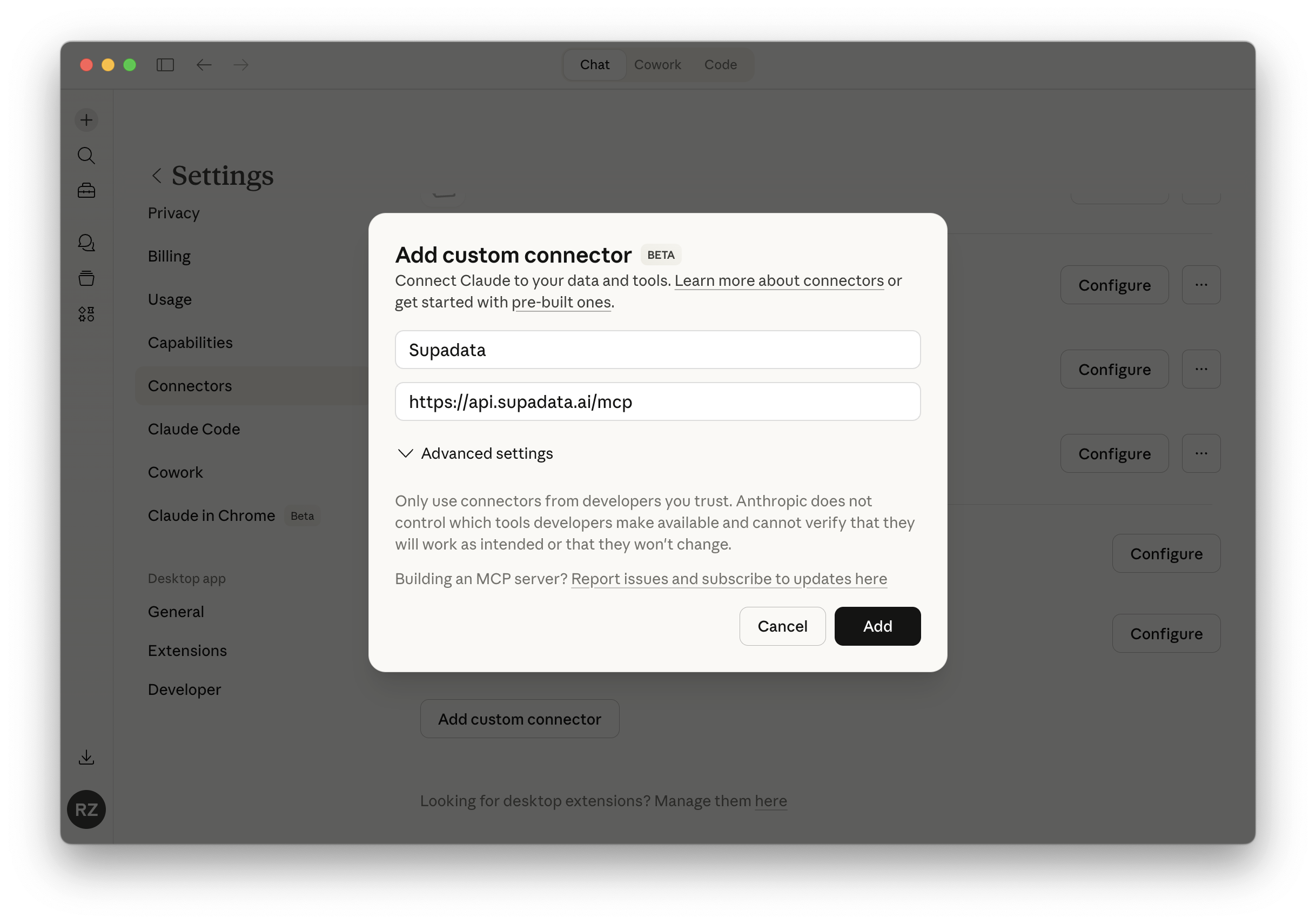
2. Click **Add custom connector** and enter `Supadata` as the name and `https://api.supadata.ai/mcp` as the URL. Click **Add**.
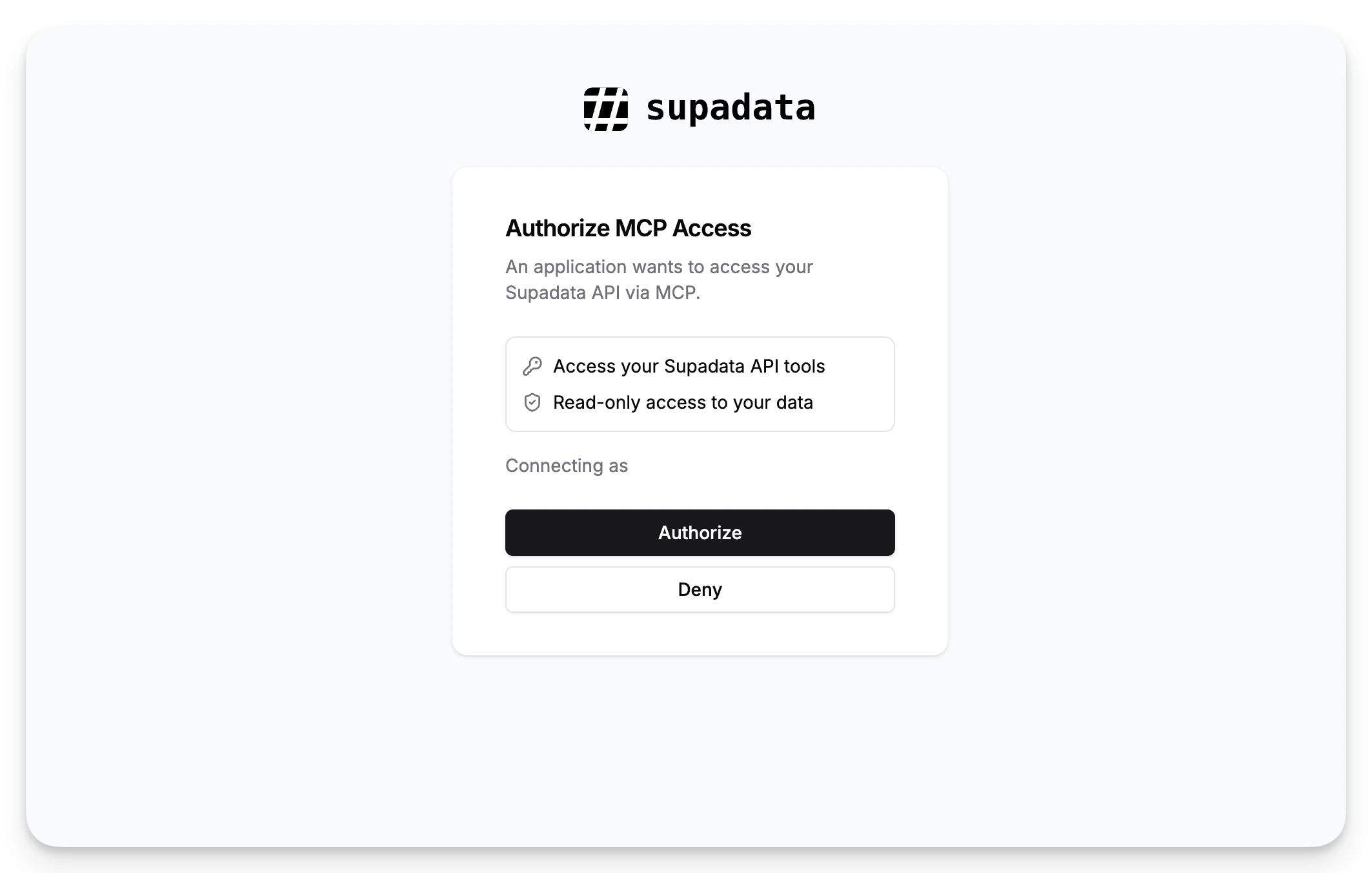
 3. Click **Authorize** when prompted to grant MCP access.
 ### Claude Code
1. Add the Supadata MCP server:
```bash theme={null}
claude mcp add --transport http supadata https://api.supadata.ai/mcp
```
2. Run `/mcp` in Claude Code and select **Authenticate** for Supadata to complete the OAuth flow in your browser.
### ChatGPT
1. Go to **Settings** → **Apps & Connectors**
2. Click **Create** to add a new connector
3. Enter `Supadata` as the name and `https://api.supadata.ai/mcp` as the connector URL
4. Click **Save**
To use it in a conversation, click the **+** icon in the composer, select **More** → **Developer mode**, and choose the Supadata connector.
### Cursor
1. Open Cursor Settings
2. Navigate to **MCPs & Integrations** → **New MCP Server**
3. Add new MCP server:
```json theme={null}
{
"supadata": {
"command": "npx",
"args": ["-y", "@supadata/mcp"],
"env": {
"X_API_KEY": "your-api-key"
}
}
}
```
### Windsurf
Add to `~/.windsurf/cascade/config.json`:
```json theme={null}
{
"mcpServers": {
"supadata": {
"command": "npx",
"args": ["-y", "@supadata/mcp"],
"env": {
"X_API_KEY": "your-api-key"
}
}
}
}
```
### VS Code
Using the MCP extension:
1. Install the MCP extension
2. Add Supadata server configuration
3. Set your API key in environment settings
## Configuration
### Environment Variables
* `X_API_KEY`: Your Supadata API key (required)
## Support
* [GitHub Issues](https://github.com/supadata-ai/mcp/issues)
* [MCP Documentation](https://github.com/supadata-ai/mcp#readme)
### Claude Code
1. Add the Supadata MCP server:
```bash theme={null}
claude mcp add --transport http supadata https://api.supadata.ai/mcp
```
2. Run `/mcp` in Claude Code and select **Authenticate** for Supadata to complete the OAuth flow in your browser.
### ChatGPT
1. Go to **Settings** → **Apps & Connectors**
2. Click **Create** to add a new connector
3. Enter `Supadata` as the name and `https://api.supadata.ai/mcp` as the connector URL
4. Click **Save**
To use it in a conversation, click the **+** icon in the composer, select **More** → **Developer mode**, and choose the Supadata connector.
### Cursor
1. Open Cursor Settings
2. Navigate to **MCPs & Integrations** → **New MCP Server**
3. Add new MCP server:
```json theme={null}
{
"supadata": {
"command": "npx",
"args": ["-y", "@supadata/mcp"],
"env": {
"X_API_KEY": "your-api-key"
}
}
}
```
### Windsurf
Add to `~/.windsurf/cascade/config.json`:
```json theme={null}
{
"mcpServers": {
"supadata": {
"command": "npx",
"args": ["-y", "@supadata/mcp"],
"env": {
"X_API_KEY": "your-api-key"
}
}
}
}
```
### VS Code
Using the MCP extension:
1. Install the MCP extension
2. Add Supadata server configuration
3. Set your API key in environment settings
## Configuration
### Environment Variables
* `X_API_KEY`: Your Supadata API key (required)
## Support
* [GitHub Issues](https://github.com/supadata-ai/mcp/issues)
* [MCP Documentation](https://github.com/supadata-ai/mcp#readme)